Find your presentations
Every presentation your team selected for the engagement, on one page, with the most recently updated at the top and a search box once there are a few of them.


No more resending the same presentation.
Consultant Portals are branded, folder-scoped external portals. A speaker, KOL or advisory board member gets one page holding the presentations your team selected for their engagement. They can open a presentation, present it full screen, or download the PowerPoint. You choose the folder it shows and who gets a link.
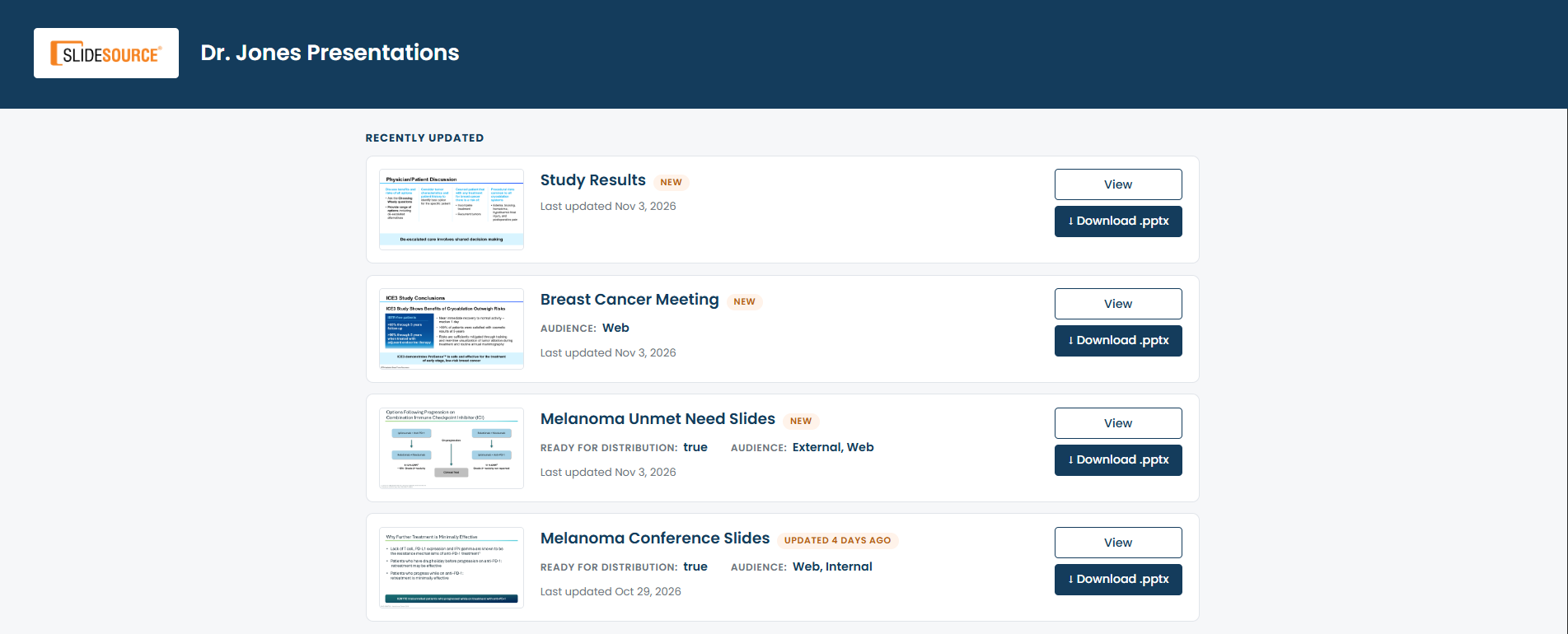
A speaker’s view: the presentations selected for their engagement, with the most recently updated first.
Every presentation your team selected for the engagement, on one page, with the most recently updated at the top and a search box once there are a few of them.
Open a presentation in the browser, step through it, and switch to full screen to present from it. Nothing to install, and they do not need PowerPoint.
Take the .pptx when a local copy is needed, or pull down a single slide from the viewer.
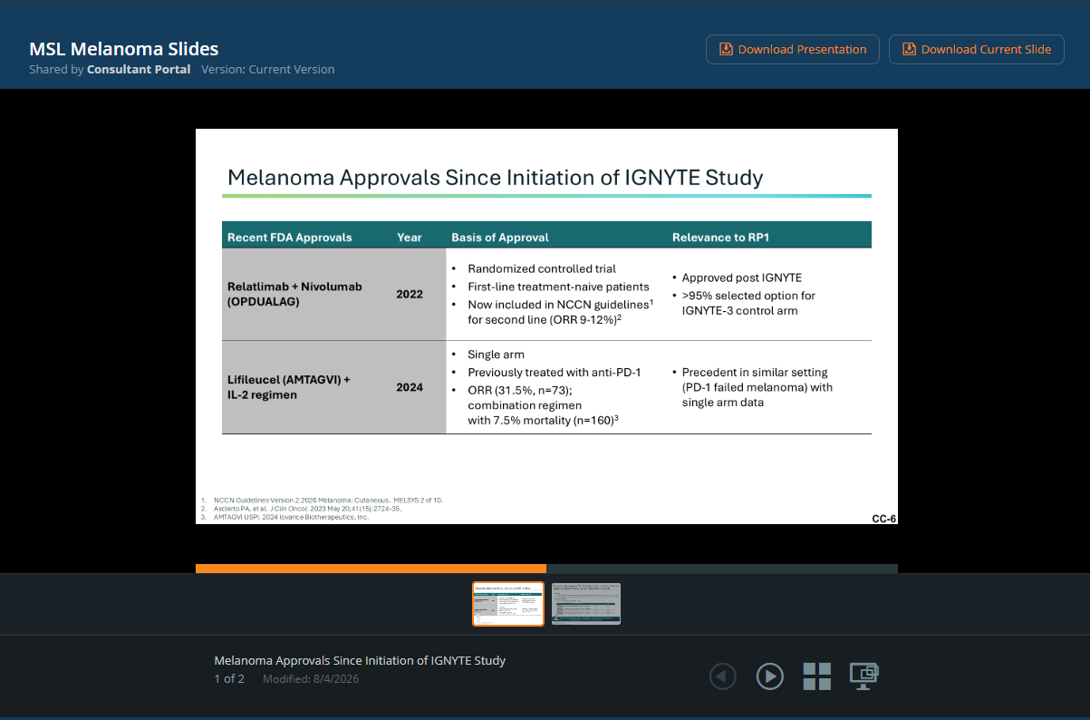
Clicking View opens the presentation in the browser, with a full screen mode to present from and a download for the PowerPoint.
Speaker support usually lands on one or two people. The same questions come in before every engagement, and answering them pulls someone off whatever else they were doing.
A portal gives the speaker one place to go back to, and saves your team from answering the same question before every engagement.
Give a speaker the presentations selected for their engagement, and somewhere to go back to when they need them again.
Give advisors and KOLs a clear place to review the presentations before the meeting, and close the portal yourself when the engagement ends.
Give an outside expert the content the work requires, and nothing else.
Hand an agency the current materials to work from without adding them as users of SlideSource Library.
A presentation does not stay in the portal. A speaker downloads it, works on it in PowerPoint, and presents from their own copy a week or a month later, by which time the science underneath it may have moved.
vCheck can be added to consultant presentations. It marks the slides it covers, so whoever is holding the file can check whether each one is still current against its source in SlideSource Library.
It is a check, not a lock. vCheck does not stop anyone presenting, does not alter the slides inside a file somebody already has, and does not reach into their copy to withdraw it. It tells them what has changed, and leaves what to do about it to them.
A portal shows one folder and everything under it. Nothing else in SlideSource Library is reachable from it.
Invite someone by email and they get in through a secure link, with no account to create. Or require a SlideSource Library login, in which case invitation links are refused and only the named account works.
Set an expiry when you send the invitation. Revoke a grant and the portal closes straight away, including any link the speaker had bookmarked.
Every visit and every download is written against the named person who was invited. Set an inactivity window and SlideSource Library emails your admins when a portal has gone quiet.
They find the presentations your team selected for their engagement, open them in the browser, present through them full screen, or download the PowerPoint files. The portal holds presentations, so it is the place they go for what they are presenting rather than a general document store.
Yes. Opening a presentation from the portal launches it in the browser, with slide navigation, a thumbnail strip, and a full screen mode to present from. Nothing is installed, and PowerPoint is not required on the speaker’s machine.
Yes. Each presentation carries a download that hands over the current .pptx, named by your library’s filename convention, and a speaker can also download a single slide from the viewer. If your library requires approvals and a presentation is still waiting on one, the download is refused and the speaker is told to contact the admin who invited them.
Yes. vCheck marks the slides it covers so a speaker holding a downloaded file can check whether each one is still current against its source in SlideSource Library. It is a check rather than a control: it does not stop anyone presenting, and it does not change the slides in a file that has already been downloaded.
Yes, and they are set up separately rather than as one workflow. A commercial speaker bureau and a Medical Affairs advisory board each get their own portal, scoped to their own folder, with their own people invited to it.
No. An email invitation gives access through a secure link, with no account to create. You can require a login instead when an engagement needs access tied to a named account, and a login-required portal will not accept invitation links at all.
Only the folder the portal is scoped to, and the presentations inside it. Nothing else in SlideSource Library is reachable, and a portal-issued link stops working once the grant is revoked.
Not on its own, and the difference is worth knowing. An email invitation can carry an expiry date, so a secure link can be set to stop working on a date you choose. Access tied to a SlideSource Library login has no expiry and an administrator revokes it. Inactivity alerts email your admins when a portal has gone quiet, which is what prompts that review, but an alert never revokes anything by itself.
Already using SlideSource Library? The guide covers how external access is set up and controlled.
See how a branded Consultant Portal gives speakers, KOLs and advisory board members one clear place to reach the presentations selected for their engagement.